Guide · Product feedback
How to add a feedback board to your website.
Use KanbanTrack’s generated installation code to collect feature requests, bug reports, and votes. You will need a KanbanTrack account and access to your website’s HTML or custom-code settings.
Get started1. Create a Web App Project
Sign in, select New project, and choose Web App Project. Name it after the product whose feedback you want to collect, then select Create project. Open the project and select Install widget.
2. Choose the display mode
- Inline: show the board directly in a feedback page.
- Floating: display a button that opens the board.
- Custom button: use your own element to open the board.
Choose the theme and, where applicable, the button label in the installer.
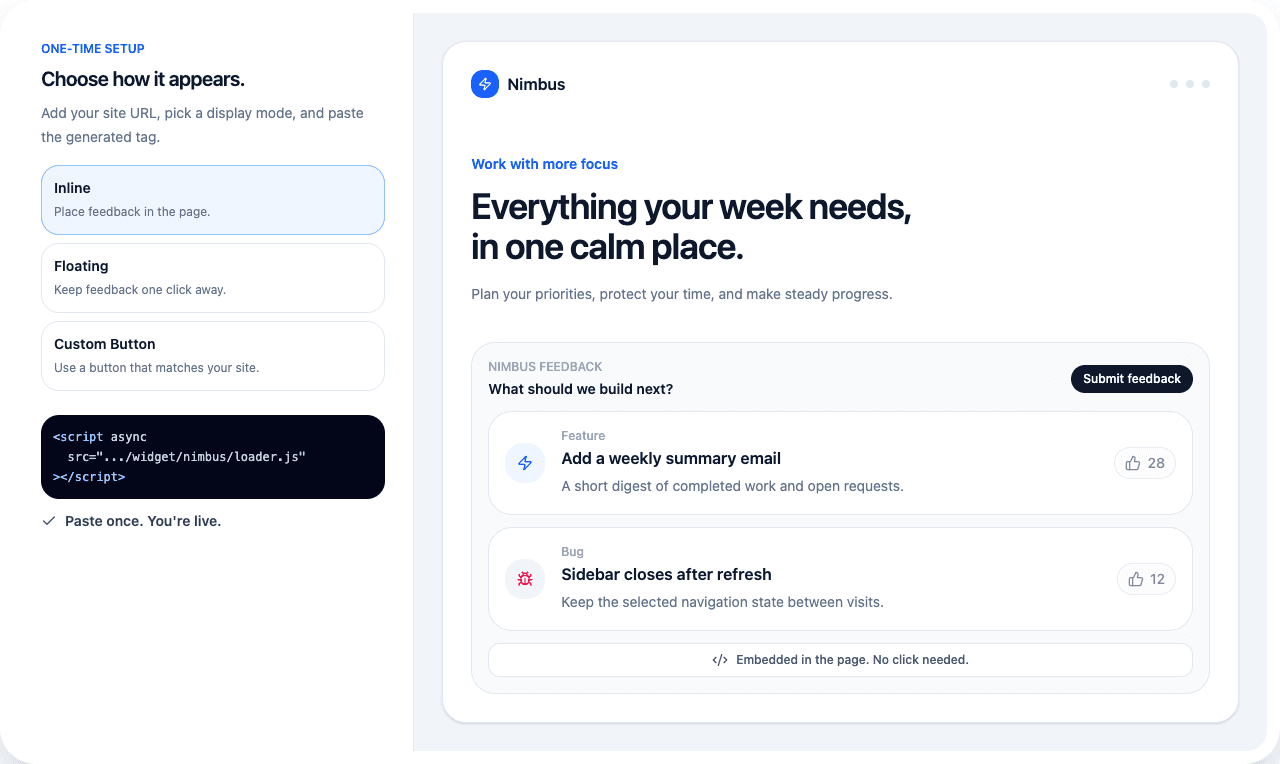
3. Add your website origins
Under Allowed website origins, enter each origin on its own line. An origin includes the scheme and hostname, plus a port if needed. For example, https://example.com and https://www.example.com are separate origins. Do not include a page path.
You can add up to ten origins. Include your exact local HTTP origin when testing locally. Select Create widget to save the configuration and generate the installation code.
4. Copy and install the generated code
Select Copy code under Installation code. Paste that exact code into your website’s HTML or custom-code area. For inline mode, put it where the board should appear. Your website must allow scripts to run; a text-only block or editor that removes script tags will not work.
For custom-button mode, also copy the trigger snippet from the installer, or add the data-kanbantrack-trigger attribute to your own button:
<button data-kanbantrack-trigger>Share feedback</button>The button works alongside the installation script. It does not replace it.
5. Test the published website
Open the website on an allowed origin. Confirm that the inline board appears, or open the floating or custom button. Submit a clearly labeled test request, verify it appears in your private project, then archive the test card when finished. Check the layout on a phone as well.
If the widget does not appear, check that the exact origin is allowed, the script was preserved by your website editor, and the widget is still active. For a site with a Content Security Policy, allow the KanbanTrack origin in script-src, style-src, and frame-src.
Maintain the integration
Use Save settings to update the existing widget. Rotating the code invalidates the old installation, so replace the snippet on your website after rotation. Revoke disables the widget when you no longer want to accept access through it.
Read the feedback widget overview. For read-only client delivery updates, use a Client Project instead.
Start with one project.
Sign in with Google or GitHub, create your board, and choose what to share.
Create your board